
VS Code & Cursor extension
Tailwind Class Highlighting.
Find your breakpoints, states, and custom values at a glance. Give long Tailwind class lists just enough color to make them easier to read.
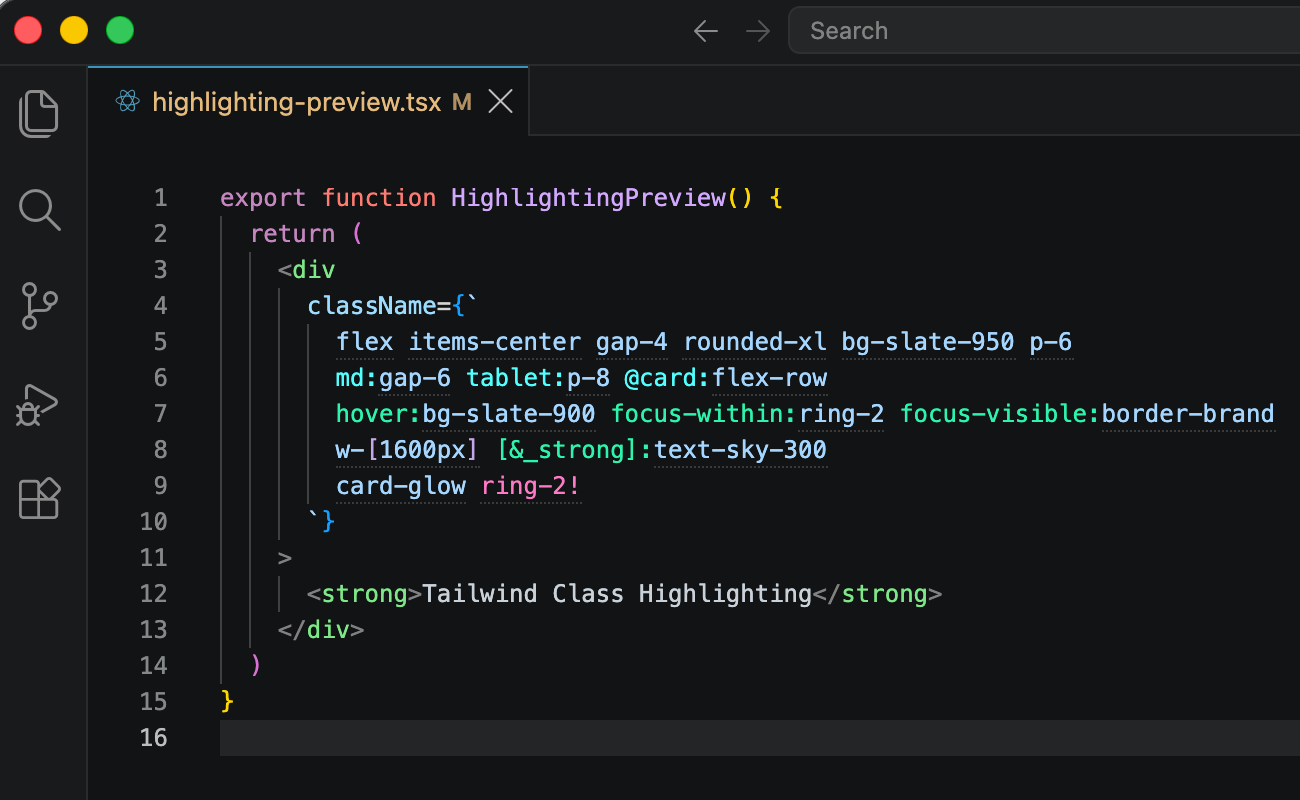
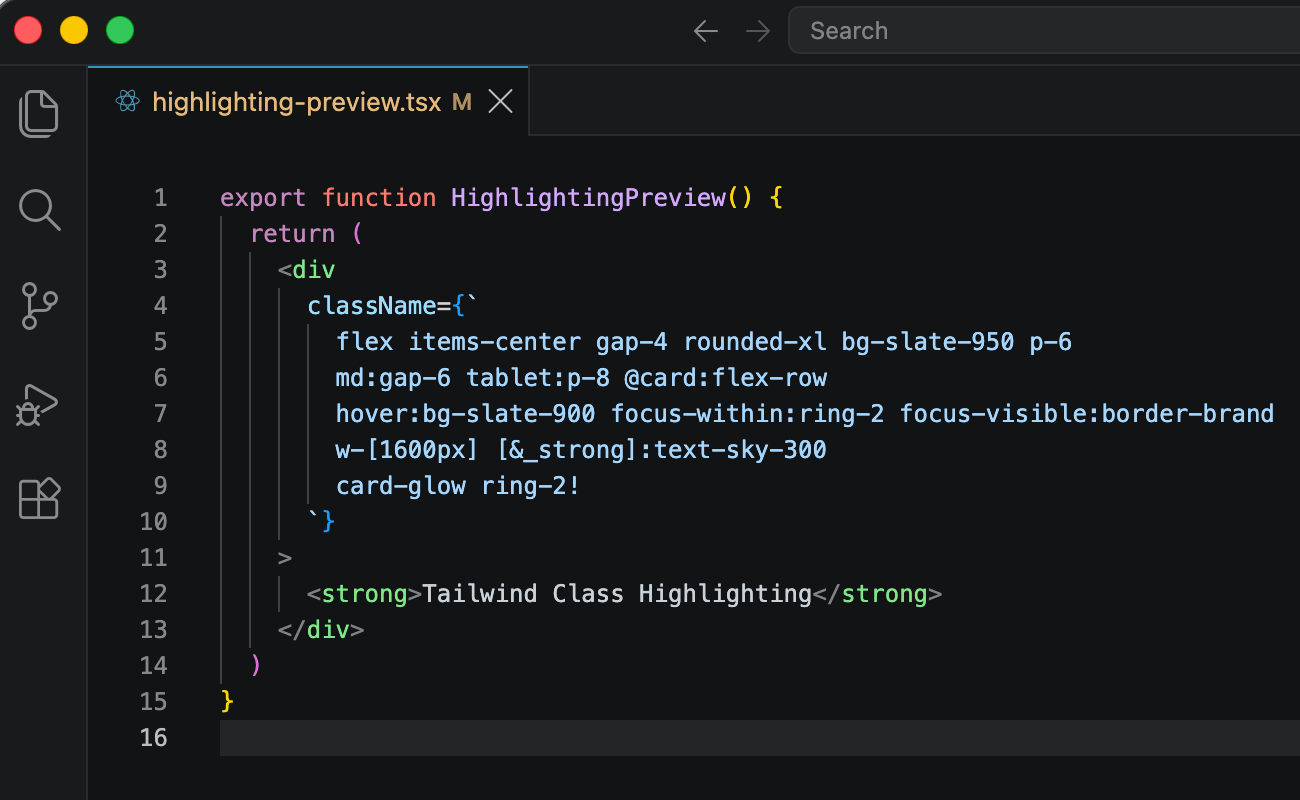
See what each class is doing.
Responsive rules, interactive states, and custom values each have a visual cue. Recognized utilities get a subtle dotted underline.
- Spot responsive styles.
Pick out breakpoints like md: and max-lg:, custom screen names, and container-query variants within a long class list.
- Find states and selectors.
Hover, focus, dark mode, data attributes, and other variants stand out from the utility they control.
- See values and modifiers.
Arbitrary-value brackets and important modifiers get their own treatment. Enable extra colors for prefixes, slash modifiers, and more.
Choose what stands out.
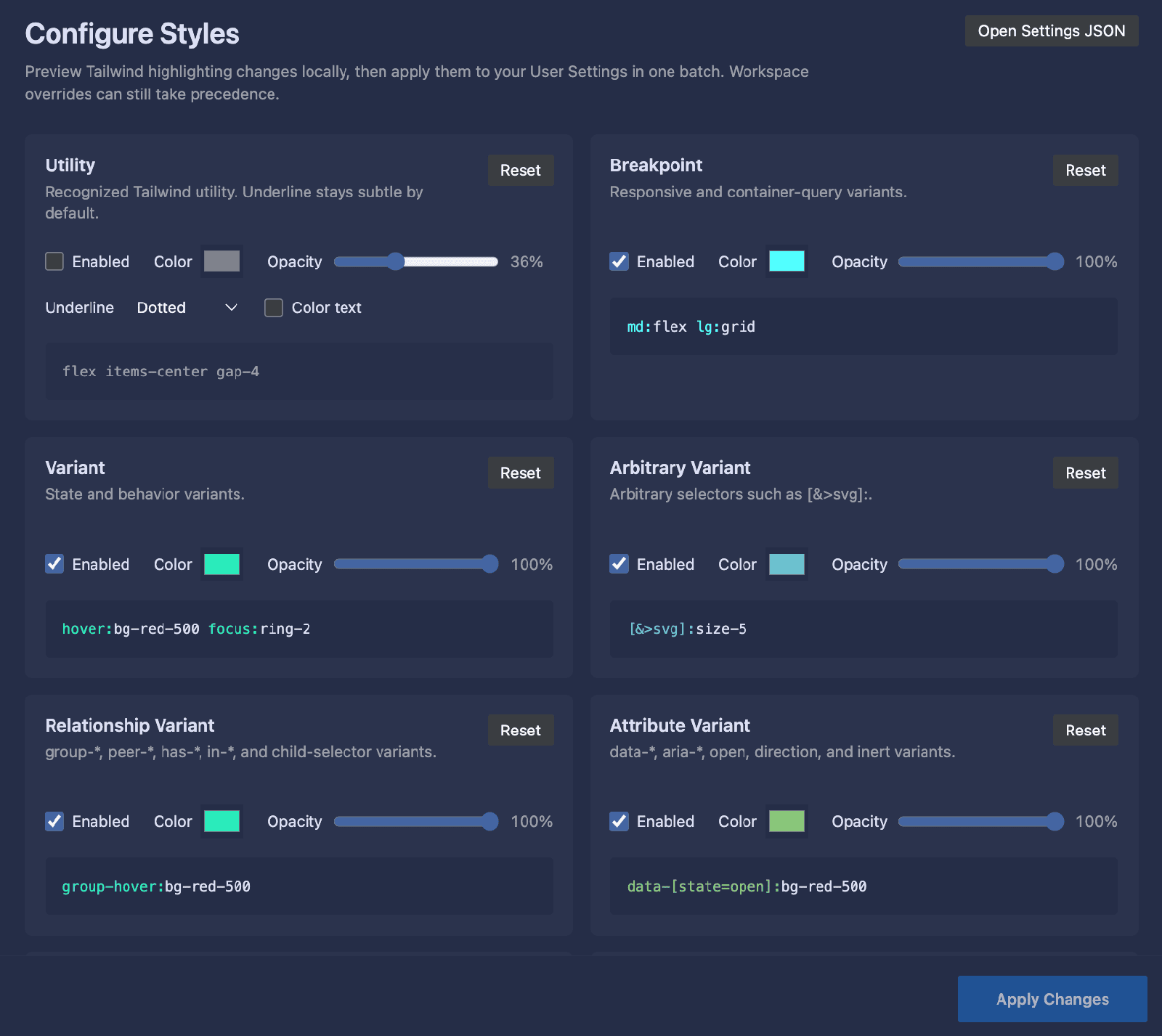
Adjust each category’s color, opacity, and visibility in Configure Styles. See your changes in the live preview, then apply them to your editor settings.
Follows your Tailwind project. Highlighting uses your local Tailwind v4 installation, including your custom utilities, variants, breakpoints, and theme values. It works alongside Tailwind CSS IntelliSense.
Add it to your editor.
Available for VS Code, Cursor, and compatible editors on macOS, Windows, and Linux. Requires Tailwind CSS v4 and an editor based on VS Code 1.95 or later.
Install the extension.
Open the listing for your editor, or search Extensions for Tailwind Class Highlighting by Serbyte Development.
Open a Tailwind CSS v4 project.
Open a trusted workspace with Tailwind v4 installed. Highlighting recognizes class attributes and helpers such as clsx, cn, cva, and twMerge.
Make the colors your own.
Open the Command Palette and run Tailwind Class Highlighting: Configure Styles. Adjust the preview, then choose Apply Changes.