
Model Context Protocol server
Image Search MCP.
Give your AI assistant access to search Unsplash, Pexels, and Pixabay for a photo you need.
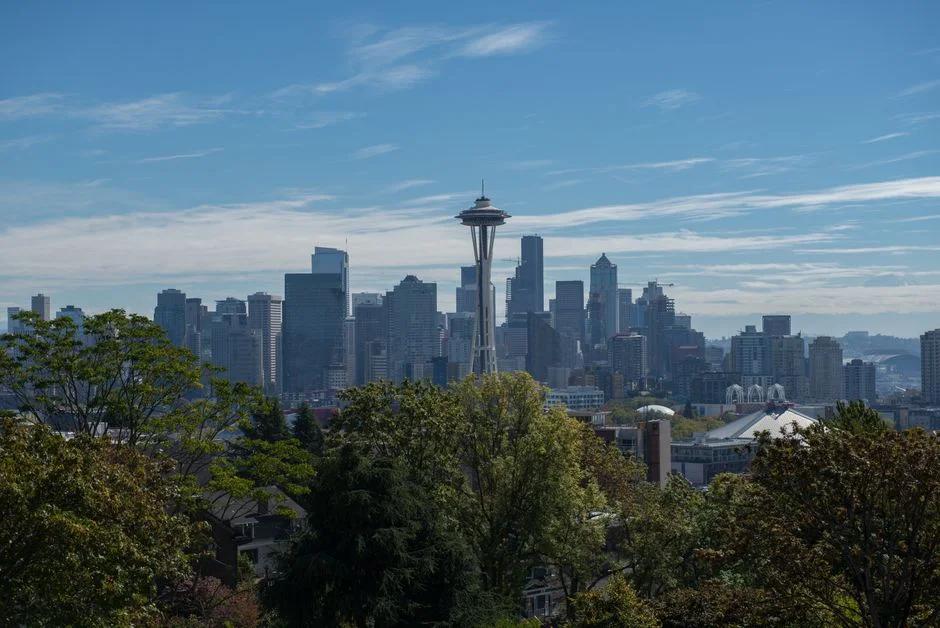
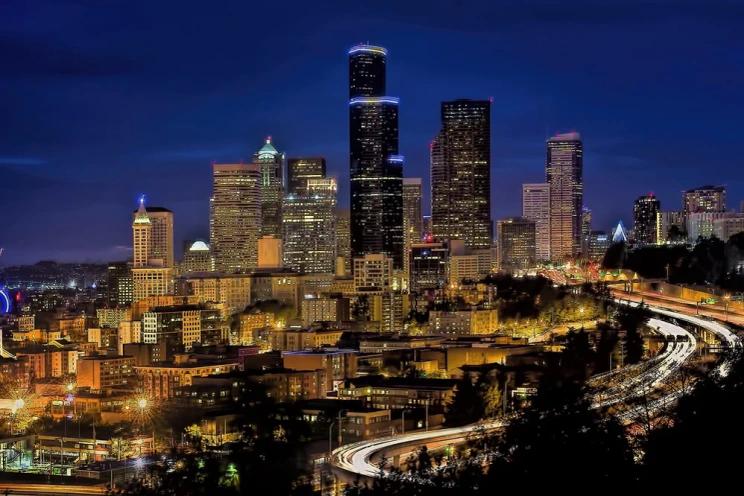
Find a photo that fits your brief.
Tell your assistant where the photo will go. For a travel guide cover, you might want a wide skyline at dusk with room for the title.
- Narrow the search.
Ask for a view from the water, a different time of day, or photos from a favorite library. You can refine the request in the same chat.
- Try a photo in your layout.
Ask for a small copy to try in a draft. Once you like the fit, your assistant can get a larger version of the same shot.
- Get the photo credit.
Ask who took the photo and where it was published. You can share the photographer’s name and the original link with your designer.
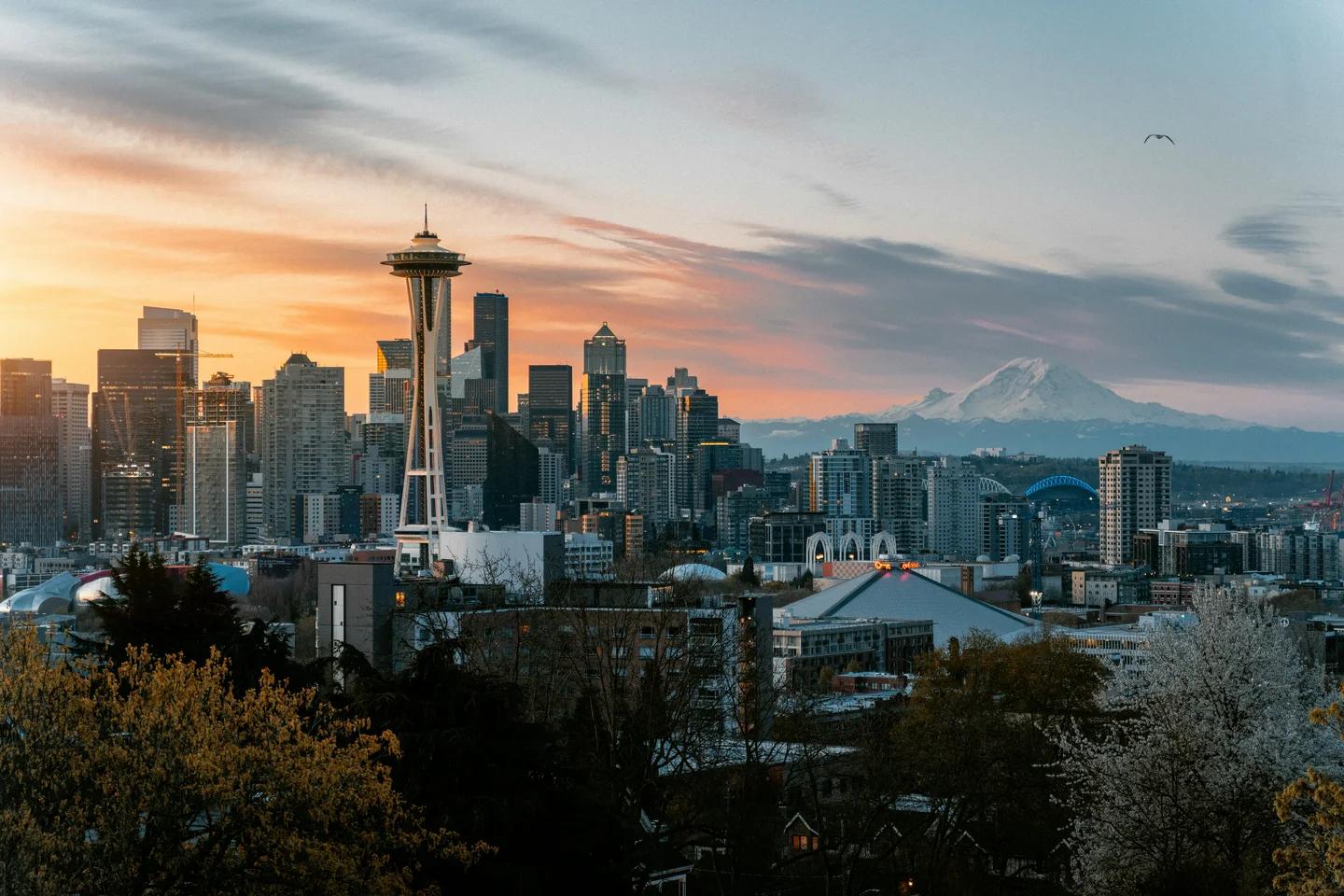
A cover photo for the Seattle guide.
“I like the sunset one with Mount Rainier. Can you download a large copy for the cover and tell me who took it?”
Stephen Plopper photographed this view from Kerry Park. View the original on Unsplash.
Add photo search to your assistant.
You’ll need an assistant that supports MCP and an API key from at least one photo library. You can start with the library you already use.
Open the setup prompt.
Paste it into a coding assistant that can install tools, and tell it which app you want to use for photo searches.
Connect your photo library.
Get an API key from Unsplash, Pexels, or Pixabay and enter it in your connection settings.
Ask for your first photo.
Reopen your assistant and describe a photo you need for a project. When one catches your eye, ask for a copy.